Enter footnotes
The Note button inserts a footnote in the text. The editor shows its reference marker and collects the notes in a panel below the editing area.
Create a footnote
Place the cursor where you want the reference marker, then click Note. If you select text within one paragraph first, that text becomes the note's content. Enter or edit the Note text, then click Apply. Save the article with the SPIP form afterwards.
The Name field is optional: leave it empty for an automatically numbered reference such as [1]. Enter a name to show it in place of the number, for example [A]. Check No reference to keep the note without a marker in the text; the Name field is then disabled. The note text is required unless a Name is entered, including a number to refer to an automatic note.
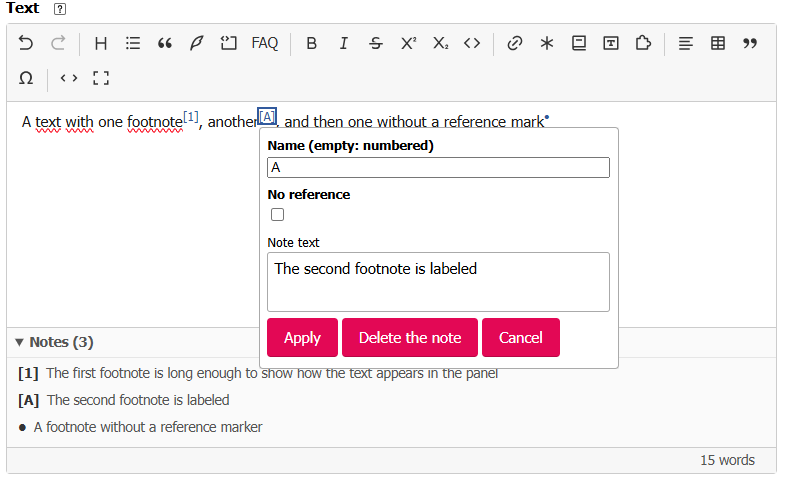
The Note text area is a small editor: it supports formatting, links, lists, and more. It has no toolbar of its own and does not allow notes inside notes.
Refer to a note again
To add another reference to an existing note, create a note with the same Name, such as A,
and leave Note text empty. Click Apply. Both [A] markers refer to the same note;
the Notes panel only lists its definition.
In source mode, this gives First[[<A>A shared explanation.]] Another[[<A>]].
The return link in the note always leads to the first reference marker.
You can also refer to an automatic note by entering its number in Name, such as 1, with
no text ([[<1>]]). You must adjust this reference if the numbering changes.
Edit or delete a footnote
Click its reference marker in the text or its entry in the Notes panel below the editor. Change its name, No reference option, or text, then click Apply. To remove it, click Delete the note. Clicking a repeated reference lets you edit or delete that marker only. Deleting the definition preserves its references; adjust them if needed.
Clearing a note’s text while keeping its Name, then applying, turns it into a reference without a warning. If no other definition with that name exists in the article, its references no longer have any associated note text: restore a definition or remove the affected references.
The panel updates as the notes change; it is hidden when there are no notes or when you switch to source mode.
In source mode, a numbered note is written
[[Note text]], a named note [[<A>Note text]], and a note without a reference
[[<>Note text]].