SPIP content
The editor retains SPIP-specific features. Dialogs spare you from memorizing their syntax, while you can still access the source.
Formatting
Select the words you want to change, then choose a toolbar tool.
| What you want to do | Tool to use |
|---|---|
| Emphasize a few words | Bold, Italic, or Strikethrough |
| Write superscript or subscript text | Superscript or Subscript |
| Align one or more paragraphs | Alignment menu: left, centered, right, or justified |
| Insert quotation marks or special characters | Quotation marks and Characters menus |
To remove an effect, select the passage and click the same button again. The Alignment menu also offers No alignment to restore the usual layout. Alignment applies to the affected text blocks, rather than individual words or a table cell.
Headings and lists
Place the cursor in the paragraph you want to change, then open Heading. Subheading corresponds to the usual SPIP heading. Additional levels depend on the site configuration. Choose Paragraph to return to ordinary text.
The List menu turns the current paragraph or selected paragraphs into a bulleted or numbered list. Enter creates the next item. Tab indents an item; Shift+Tab outdents it. You can also use the indentation commands in the menu. Click the active list type again to remove the list.
To create or edit a table, see Tables.
Quotations and poetry
Place the cursor in a paragraph or select several paragraphs, then click Quote. Click it again to remove the quotation.
Poetry preserves the line breaks in a passage. Select the paragraphs and click Poetry; click it again to return to ordinary text.
Editing code
These tools display code examples within your article. The Source button edits the SPIP syntax of the whole article.
A short code excerpt within a sentence
Select a function name, command, or other short excerpt, then click Code (Ctrl+E, or ⌘+E on a Mac). Click it again to remove the effect. The text stays within the paragraph; SPIP syntax within the excerpt is not interpreted.
A block of several lines
- Place the cursor in an empty paragraph or in the paragraph you want to convert.
- Click Code block.
- Type or paste your code into the block. Enter adds a line break within it.
- To resume ordinary text after the block, press Ctrl+Enter (⌘+Enter on a Mac).
At the end of the block, pressing Enter three times also exits it. To turn the block back into a paragraph, place the cursor inside it and click Code block again. Bold, links, and other formatting do not apply inside a code block. Use spaces for indentation; Tab does not indent code.
Choose a language and enable highlighting
The toolbar has no language selector. To create a block with a language directly in visual
mode, type three backticks followed by php (that is, ```php)
at the start of an empty paragraph, then press Space. The paragraph becomes a PHP code block.
To set or change the language of an existing block, switch to Source and add it after the three opening backticks, then return to visual mode:
```php
$message = 'Hello';
echo $message;
```
Another recognized form uses a <code> tag with a language class:
<code class="php">
echo 'Hello';
</code>
You can still edit the code in such a block in visual mode; switch to Source to change its class. Avoid combining the two forms within one block.
Highlighting while you type requires the optional Coloration Code plugin to be active,
with its script and the matching language available. Specify a language such as php, js,
or css: without one, the code remains plain text. An unavailable language also remains
editable without highlighting. Code blocks work without this plugin too.
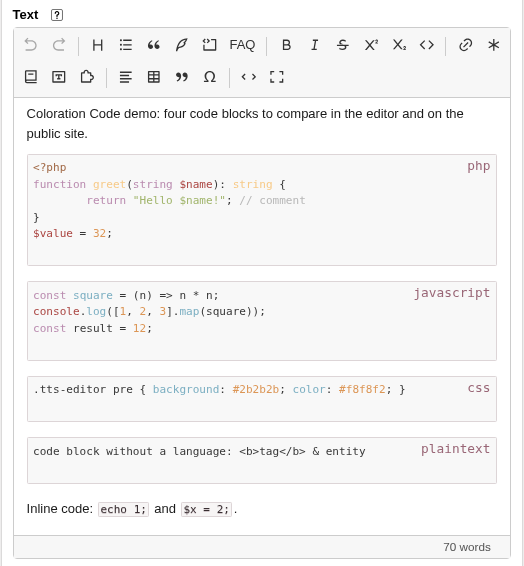
The screenshot shows code blocks with Coloration Code enabled.
A few keyboard shortcuts
On a Mac, use ⌘ instead of Ctrl.
| Action | Shortcut |
|---|---|
| Bold / italic | Ctrl+B / Ctrl+I |
| Code within a sentence | Ctrl+E |
| Insert a link | Ctrl+K |
| Undo / redo | Ctrl+Z / Ctrl+Shift+Z |
| Switch between source and visual mode | Ctrl+Shift+E |
| Expand the editor | F11 when the cursor is in the editor |
Other shortcuts appear in their buttons' tooltips.
Links to a page or document
Select the link text and click Link. Enter a web address or search for a site object, such as an article or section. The dialog also lets you add a tooltip, a language, or an option to open in a new window. To edit an existing link, place the cursor inside it and reopen Link.
In source mode, an internal link might be written [Read the article->art12].
Notes and glossaries
Note inserts a numbered reference in the text. Its dialog has a small editor of its own and supports bold text, links, lists, and more. A panel below the editor gathers the text's notes; click one to edit it. You can also name a note or place it without an in-text reference.
See Enter footnotes for the dialog steps and options.
Glossary associates a term with a definition: select the word, then open Glossary. You can choose a glossary, specify a tooltip or language, and check the destination with See the definition.
Images, documents, and other models
A shortcut such as <doc12|center> is a SPIP model. The editor can show a preview, but SPIP
calculates the final display. The Model button always lets you enter the shortcut. If the
optional Insérer modèles plugin is installed and compatible with your SPIP version, its
catalog and forms are offered. On SPIP 5, the catalog is unavailable with the current version
of that optional plugin: enter the shortcut directly.
To upload files from the editor, see Paste images and drop files.
Multiple languages in one text
The Multilingual button creates language-specific versions of a passage. See Use multis to enable the button, switch the displayed language while editing, and fill in the multi window.
In the multi window, choose the language of each version from the list. It offers the languages enabled under Configuration → Multilingual; a language already present in the multi is still offered. No language is the version shown when no other one matches.
If a passage appears as code
A malformed shortcut or syntax added by another plugin may remain as raw source. Click it to view and, if needed, correct its source; you can also use Source. This keeps the editor from rewriting a fragment it cannot represent. For syntax specific to your site, a developer can create an editor extension.