Getting started
Edit existing text
- Open an article in the private area and click Edit.
- Place the cursor in the Text field. If the visual editor is enabled for that field, its toolbar appears above the text.
- Select a few words and click Bold or Italic.
- Save with the SPIP form button as usual.
The editor shows a representation of the content; the public page still uses SPIP's normal processing. You can open and edit existing text without a migration step.
Find your way around the toolbar
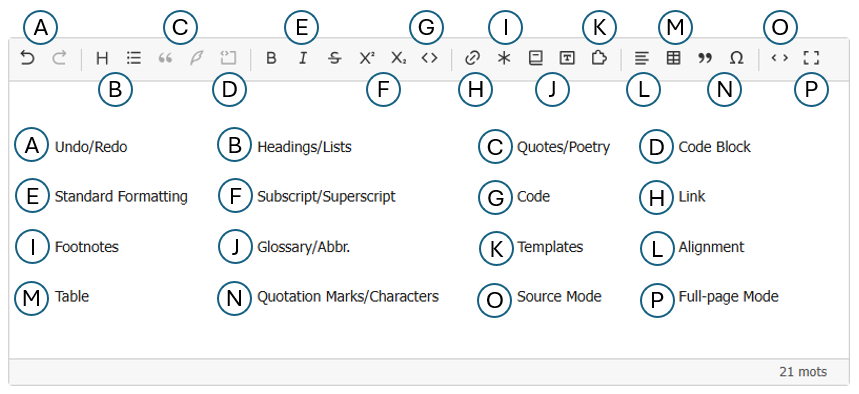
The letters in the screenshot identify the following tool groups. Click a tool name for more detailed instructions.
| Label | Tools | What they do |
|---|---|---|
| A | Undo / Redo | Undo the last change or restore an undone change. |
| B | Headings / Lists | Turn paragraphs into headings, bulleted lists, or numbered lists; indent list items. |
| C | Quote / Poetry | Present a quotation or preserve line breaks in a poetry passage. |
| D | Code block | Enter a code example on several lines without interpreting its SPIP syntax. |
| E | Bold / Italic / Strikethrough | Apply or remove these effects on selected words. |
| F | Superscript / Subscript | Raise or lower selected characters. |
| G | Code | Display a short code excerpt within a sentence. |
| H | Link | Create or edit a link to a web address, article, section, or site document. |
| I | Footnote | Insert a note and edit its content in a dedicated dialog. |
| J | Glossary / Abbreviation | Link a term to its definition; provide the expansion of an abbreviation. |
| K | Model | Insert a SPIP model using its syntax or the catalog, when available. |
| L | Alignment | Align text blocks to the left, center, or right, or justify them. |
| M | Table | Create a table and manage rows, columns, headers, and merged cells. |
| N | Quotation marks / Characters | Surround selected text with quotation marks or insert a special character. |
| O | Source | View and edit the article's SPIP syntax, then return to visual mode. |
| P | Full screen | Expand the writing area for more space. |
Hover over a button to see its name and keyboard shortcut, if it has one. Depending on the configuration and content, the toolbar may also offer Multilingual and displayed-language tools, which are absent from this screenshot.
The toolbar stays visible as you scroll through the form. Available buttons depend on the field: a forum comment, for example, has a shorter toolbar than an article.
Switch to source and back
Click Source to view and edit SPIP syntax, such as {{bold}} or [text->art12]. Click it
again to return to the visual view. The editor then reads the source text again. Your mode choice
is remembered in this browser; an administrator can also choose the site's
initial mode.
If a particular fragment appears as code in the visual view, click it or switch to Source to correct it. Syntax issues are shown below the editor.
Expand the writing area
The Full screen button expands the editor; press Esc to return to the form. In a link or note dialog, Esc closes the open dialog first.
For more, see SPIP content.